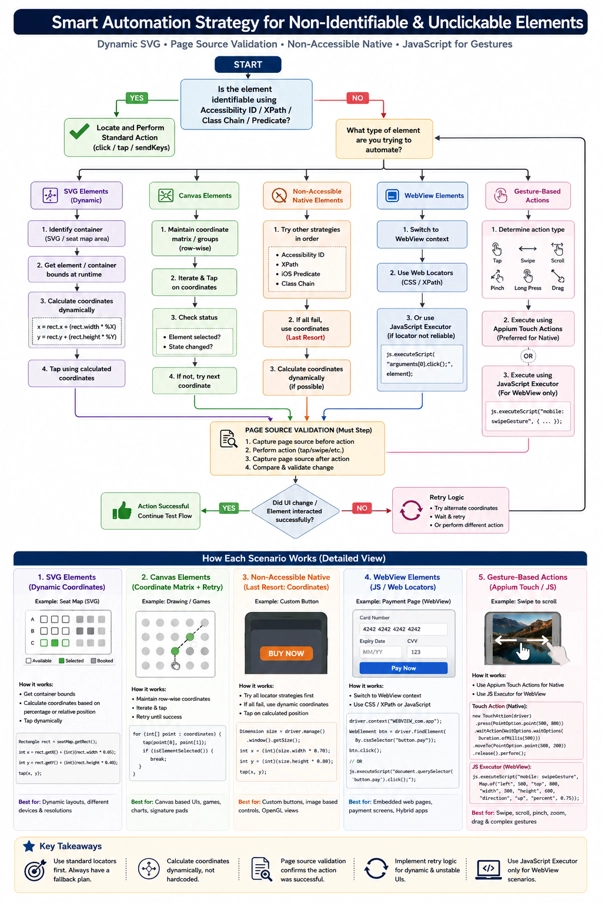

Why Mobile Test Automation Fails When Elements Are Not Identifiable
Mobile automation has become increasingly challenging as modern applications adopt custom UI frameworks, SVG graphics, Canvas rendering, hybrid architectures, and dynamic components.
In these scenarios, usual locator strategies such as Accessibility ID, XPath, or ID are often insufficient for automated testing.
For successful mobile test automation framework, it’s important to both identify elements and build stable, maintainable, scalable and reliable automation frameworks across different devices and application updates.
This blog uses a ticketing application as an example because ticket booking flows often include complex elements such as seat maps, SVG layouts, Canvas rendering, dynamic availability, and custom UI components.
These are real-world cases where traditional Appium locators may fail and alternative automation strategies are required.
Why Appium Locators Fail in Modern Mobile Applications
Most automation engineers begin with the following locator hierarchy:
Accessibility ID
↓
ID
↓
iOS Predicate / Class Chain
↓
XPath
This works well for standard applications.
However, modern mobile applications frequently contain:
- SVG seat maps
- Canvas-based rendering
- Custom native controls
- Hybrid applications
- Dynamic UI components
- Hidden or overlapping elements
Figure 1 – Appium Inspector showing a non-identifiable seat element
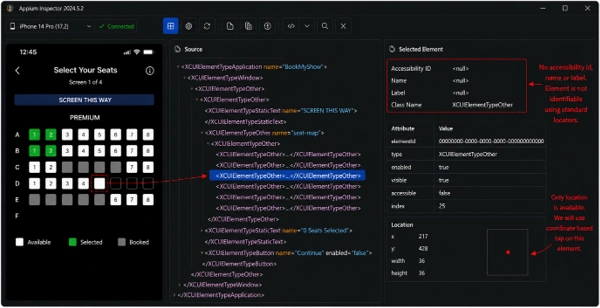
In these situations, a different automation strategy is required.
Common Reasons Mobile Elements Are Not Identifiable or Clickable
During mobile test automation, you may encounter:
| Challenge | Description |
| Elements not visible in Appium Inspector | Inspector cannot identify the control |
| Missing Accessibility ID | Developers haven’t exposed accessibility properties |
| XPath not working | Element is dynamically rendered or absent from the hierarchy |
| Click action fails | Element exists but is not interactable |
| Canvas rendering | Individual elements do not exist in the UI tree |
| SVG rendering | Interactive graphics behave differently from native controls |
| WebView components | Require switching automation context |
| Hidden or overlapping elements | Another view blocks interaction |
| Dynamic rendering | UI changes continuously after user actions |
How to Choose the Right Automation Strategy Based on UI Type
Rather than relying on a single locator strategy, determine the UI type first and then apply the most suitable automation approach.
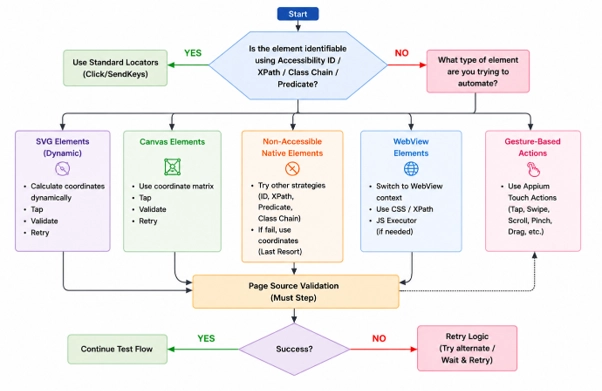
Practical Solutions for Handling Non-Identifiable Mobile Elements
1. Use Dynamic Coordinate-Based Tapping as a Fallback
When to use – Use coordinate tapping only after exhausting standard locator strategies.
Typical scenarios:
- SVG seat maps
- Custom native controls
- Image-based buttons
- Canvas-rendered interfaces
Instead of hardcoded coordinates.
Avoid: tap(320,540);
Use: Calculate coordinates dynamically.
Dimension size = driver.manage().window().getSize();
int x = (int)(size.width * 0.62);
int y = (int)(size.height * 0.48);
tapOnCoordinate(x,y);
or
Rectangle rect = seatContainer.getRect();
int x = rect.getX() + rect.getWidth()/2;
int y = rect.getY() + rect.getHeight()/2;
Why Dynamic Coordinates Are Better Than Hardcoded Coordinates
Supports multiple devices
- Handles different resolutions
- More maintainable
- Less brittle
2. Validate Coordinate-Based Actions Using Page Source Comparison
Many engineers stop after performing a coordinate tap.
But how do you know the action actually succeeded?
Instead of assuming success, compare the page source before and after the interaction.
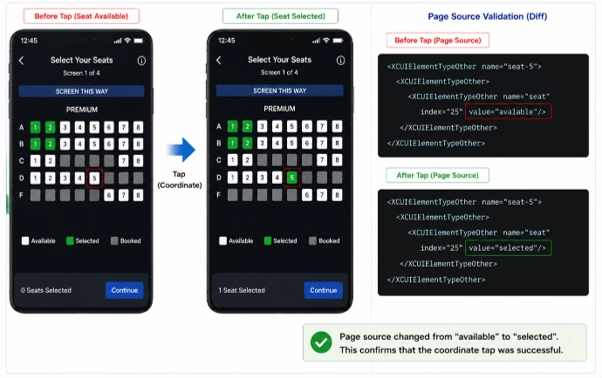
String before = driver.getPageSource();
tapOnCoordinate(x,y);
String after = driver.getPageSource();
Assert.assertNotEquals(before,after);
Benefits of Page Source Validation
- Detects successful UI updates
- Prevents false-positive test results
- Confirms seat selection or state changes
- Improves automation reliability
3. Add Retry Logic for Dynamic or Unstable Mobile Elements
Applications often contain dynamic content.
For example:
- selected seat unavailable
- element temporarily blocked
- dynamic rendering delay
Instead of failing immediately:
for(Point point : coordinates){
tap(point);
if(isSelectionSuccessful())
break;
}
Retry logic significantly improves execution stability.
4. Manage Coordinates Dynamically for Scalable Mobile Automation
Instead of storing individual coordinates:
Seat A1 = (120,210)
Seat A2 = (180,210)
Seat A3 = (240,210)
Maintain coordinate groups.
(120,210)
(180,210)
(240,210)
(120,260)
(180,260)
(240,260)
Benefits:
- Easier maintenance
- Supports changing layouts
- Simplifies retry mechanisms
For native applications, use Appium gesture APIs.
For WebView interactions, JavaScript Executor can complement web-based actions where appropriate.
Best Practices
- Prefer Accessibility ID whenever available.
- Use XPath only when necessary.
- Treat coordinate tapping as a fallback strategy.
- Calculate coordinates dynamically instead of hardcoding them.
- Validate every coordinate-based action using page source.
- Implement retry logic for unstable or dynamic UI.
- Separate Native and WebView automation strategies.
- Execute tests on real devices to verify gesture behavior.
Key Takeaways for Building Reliable Mobile Test Automation Frameworks
Modern mobile applications continue to evolve, making traditional locator strategies insufficient in many real-world scenarios. Rather than relying on a single approach, successful automation requires selecting the right technique based on the type of UI being automated.
Dynamic coordinate calculation, page source validation, retry mechanisms, and proper handling of SVG, Canvas, WebView, and custom native elements can dramatically improve the stability and reliability of Appium automation.
By following a structured decision-making process instead of immediately resorting to hardcoded coordinates, automation engineers can build scalable, maintainable, and production-ready mobile automation frameworks that remain resilient across devices, resolutions, and application updates.